Showing posts with label google. Show all posts

Thursday, August 14, 2008

The Five Best Things About Google Maps

Google Maps is one of the coolest tools available from Google, and without a doubt it’s the best, most complete and most detailed world map on the internet. I love it and use it all the time. The satellite shots help with orientation in new territory, public transport stations are listed in my area, and when I have to give directions, Google Maps is the place to go.

So here are the three best things about it …

1. Default Location

When you go to maps.google.com you will most likely see a map of North America. Being in Europe this is not very convenient for me, so I made my hometown my default location.

To set a default location at which Google Maps will always start when you open it, simply enter a location and then click “Make this my default location” on the left. The location you choose has to be at least a city, but can be as detailed as the exact street address.

2. My Maps

With My Maps you can create your own maps, annotate a Google Map, add comments, placemarks, draw directions or just goof around, which I did as you can see below.

Within My Maps click on Create new map and you’ll see four new tools in the top left corner of the map. From left to right: select/edit map features, add a placemark, draw a line, and draw a shape. Whatever you add to your map, it will appear in a small legend on the left, including the title and description you gave your items.

Needless to say you can save and share your maps, edit them anytime, collaborate on a map with others, make your maps public or keep them private.

With the Collaborate option you can invite individuals to edit your map, you can allow them to invite others as well, and you can even let anyone edit your map.

For a direct link click on Link in the top right corner of your map.

Edit and Share Google Maps

3. Browse Popular Maps

The popular maps are both useful and fun. The Distance Measurement Tool for example is incredibly easy to use and easily reveals how far a distance it is from one point to the other, Place Finder translates your location into latitude and longitude or vice versa, Amtrak has a map with passenger rail connections and stations, another map lists all Crop Circles sightings, with Clouds you can view satellite pictures of global cloud cover, and much, much more.

Distance Measurement Tool

Once you return to your maps you can check or uncheck the maps you have added, change settings or edit them (if applicable), and of course delete them.

4. Get Directions

It doesn’t work everywhere, but for most places you’ll be able to get directions by car. Recently also walking directions went live. Simply right click the map and select “Directions from here” at your start point, followed by “Directions to here” at your destination. Then choose By car or Walking from the drop-down menu. For the route I chose for my example Walking was not available - smart thing.

Get Driving and Walking Directions

The coolest thing is that for some routes you can even view images of your trip.

5. Google Mashups

Have a cool idea for a map? Create it, make your own website and become popular, just like these guys…sort of.

  • At safe2pee.org you can find a bathroom in your area (US only).
  • Antipodes Map will find what’s on the other side of the world. Interestingly Australia isn’t really down under you, but in the middle of the North Atlantic ocean.
  • The HealthMap lists the current global state of infectious diseases.
  • QClock instantly displays the local time worldwide.
  • Use grüvr to find live music nearby.

For more about Google Maps check out Mark’s post Google Maps Rolls Out Spanking New Features from May this year.

4 Cool Firefox Extensions To Capture Screens

If you are a blogger or a web content writer then I’m sure a screen capture tool is in the list of your must have tools for daily usage. With the help of a good screen capture tool you can generate screenshots relevant to your article and then put them in the post and publish it. And if you are a tech blogger like me then it becomes an almost indispensable tool.

Apart from being in-built into most of the operating systems available, there are various screen capture tools available, ranging from desktop softwares to web apps, from free ones to their more sophisticated paid counterparts. And if you are one of those who love to work entirely from the browser then there are some cool firefox add ons which let you capture screens in the snap of a finger (the click of a mouse button actually :) )

1. Screengrab

screengrab logoScreengrab is a nice firefox extension to capture screens. You can save an entire webpage, a particular selection or a frame in the JPEG or PNG format. You could drag and select a particular portion of the page or save the entire scrolling window. You can even save flash screens with this extension. When you install this extension, you get a small screengrab icon on the right side of your firefox status bar. When you click on it, it gives you the various options to save or copy the screen. Yes, you can even copy the screen to clipboard. Quick and simple.

screengrab

2. FireShot

fireshot logoFireShot goes one step ahead of Screengrab and apart from allowing you to capture screens partially or completely, it also allows you to modify the captured images. It lets you edit and annotate the screenshot and add graphics and text messages. Screenshots can be saved in 4 formats - PNG, JPEG, GIF and BMP. Like Screengrab, FireShot also allows you to save or copy the screenshot to the clipboard. You could also directly email the captured screen. When you install FireShot, a small icon is added to the toolbar and options to capture the entire page or just the visible portion are added to the context menu.

fireshot

3. Kwout

kwout logoThe Kwout Firefox add on is another cool app to easily capture and save webpages or online images. It also gives you the code for the screenshot which can be immediately embedded in your website. In fact Kwout has many more options and Kyle did a good job describing it elaborately in this post.

kwout screenshot

4. Page Saver

Page Saver is a simple browser extension for capturing screenshots and has limited features in it’s free version. It lets you capture the entire page or just the visible portion of it and save it in JPEG or PNG format. You can also configure keyboard shortcuts for doing the same by going to Add on options after installing it in Firefox.

page saver

Calgoo Connect & Hub - Calendar Syncing And Sharing Made Easy

calgooThe availability of desktop calendars like MS Outlook Calendar and iCal and free online calendars like Google Calendar have certainly made managing schedules quick and easy. However when it comes to sharing and syncing calendars, there are still not many good solutions available which are free and convenient to work with. It’s not an easy task to share your calendars with friends, especially if you have a lot of them and they use different types of calendar applications.

Enter Calgoo, a suite of calendar apps which offers an excellent free solution to syncing and sharing calendars across different platforms. Apart from offering its own calendar software, it offers Calgoo Connect and Calgoo Hub which are meant for syncing and sharing calendars respectively.

Calgoo Connect

calgoo-connect-1Calgoo Connect, as I mentioned, is a tool which lets you sync desktop calendars like Outlook or iCal with online calendars like 30 boxes and Google Calendar. It quietly works in the background synchronizing your online calendar with your desktop calendar and any changes you make on one of them reflect on the other.

It supports the following calendar programs :-

  • MS Outlook 2003 Calendar
  • MS Outlook 2007 Calendar
  • Google Calendar
  • Apple iCal
  • 30 boxes
  • And Calgoo’s own calendar program

It’s important to note that although Windows user have some good calendar sync options available, Mac users still don’t have a free solution to sync iCal to Google Calendar. Hence Calgoo connect should be a useful app for them. This could also help you easily sync your iCal with Outlook calendar if you own both a PC and a Mac.

calgoo-connect-2

Calgoo Hub

Calgoo Hub does the more difficult task of sharing your calendars with friends who may not be using the same calendar.

calgoo-hub

As you can see in the screenshot above, it supports most of the popular calendar programs including Sunbird and Plaxo Calendar. Calgoo Hub is basically an online storage for your calendar from where you can share it with your friends or just publish for public view.

Features

1. Publish Calendar Online

Calgoo Hub, as I mentioned, lets you publish your default calendar online. It supports all the popular calendars with a few exceptions (like MS Vista Calendar ). Google Calendar, 30 boxes and Outlook 2003 require you to download and install a plugin to publish to Calgoo Hub.

2. Support For Multiple Calendar Applications

Support for multiple calendar programs is a big advantage and hence you don’t need to worry about the type of calendar which your friend is using while sharing it. Although Plaxo Calendar, MS Windows Vista Calendar and Calendar Hub cannot publish to Calgoo Hub but they can still easily subscribe to a Calgoo Hub calendar.

3. Easily Share Calendars through Email

This is what makes Calgoo Hub an awesome calendar sharing app. You can share it with anyone who has a valid email address. It sends a preview link to your calendar in the email to your friend and also gives detailed steps to add it to his deafualt calendar program.

4. Subscribe to a Calgoo Hub Calendar

Calgoo Hub assigns a specific address starting with webcal:// to your calendar and hence using that address, one can easily subscribe to it in his preferred calendar program

5. Preview in Cell Phone

And finally, apart from giving an online preview option, you can also preview your calendar on your cell phone which means that it is optimized from the mobile internet as well.

Calgoo is undoubtedly one of the most comprehensive calendar software suites which focuses on calendar interoperability rather than just specific tasks like two-way syncing of particular calendars. And since it’s free now, it has become more useful than ever.

Wednesday, August 13, 2008

How to chat in Indian languages in Google Talk

If you are an Orkut user you probably know what I am going to talk about here. I am speaking about Transliteration, which essentially means that you can type in one language and have that converted to another language.

Google already offers transliteration in Orkut and many users know about it. However did you know that you can now chat in Indian languages in Gmail and Google Talk Labs Edition also?

Follow these steps to chat in Indian languages (currently 5 are supported) in Google Talk.

  1. Add a transliteration bot to your friend list. There are 5 of them available currently: (en2hi.translit@bot.talk.google.com for Hindi, en2kn.translit@bot.talk.google.com for Kannada, en2te.translit@bot.talk.google.com for Telugu, en2ta.translit@bot.talk.google.com for Tamil and en2ml.translit@bot.talk.google.com for Malayalam)
  2. Start chatting with your friend.
  3. Convert the chat session to a group chat and invite the particular bot (you added in step 1) to the group chat.

From now on whatever you type in english will be converted to the appropriate language by the bot. Have a look:

hindi chat
Chat in Indian Languages

You might have to enable Indic fonts if you dont see them correctly. Here is some more information on Indic Fonts


Ultimate GMail Collection

Ultimate GMail Collection: over 80 Tools and Tips

It’s been four months since our first Gmail Roundup. And Gmail being as popular as it is, it’s time for a major update. So here you go, over 80 Gmail tools and tips, including Firefox extensions, Greasemonkey scripts, Desktop programs, Web applications and all-purpose ‘HowTo’ guides.

Firefox EXTENSIONS

Gmail Manager - manage multiple Gmail accounts, receive new mail notifications, view unread messages right from your browser statusbar. “…The Gmail Manager Firefox add-on obviates the need to keep your Gmail open in a tab all the time by displaying your email info in a statusbar pop-up…” [via LifeHacker]

GmailThis - excellent browser bookmarklet that lets you quickly forward highlighted text on any webpage via Gmail.

Better Gmail - integrates features of 10 Greasemonkey scripts into one firefox addon. These include: Google Reader integration, Mac-like skin, GCal integration, Fixed font and more.

GmailSkinz - powerful firefox addon with lots of cool features: change Inbox color , Add Google IG modules, insert images from Picasa albums, insert smileys, make navigation menu horizontal, hide unnecessary page elements, and more. (Note: some users reported having problems with this addon).

CustomizeGoogle - removes ads, switches you from http to https, hides the spam counter, quick contacts box, invite box and forces fixed font

Gspace - multi-platform firefox addon that turns your Gmail account into powerful online storage tool.

Gmail Search - search your Gmail account directly from the firefox search bar.

GcalQuickTab - toggle between Gmail and Google Calendar with keyboard shortcuts.

GTDInbox - turns your account into flexible and feature-loaded ToDo-management service (GTD = Getting Things Done)

DragDropUpload - this handy extension lets you quickly attach one or more files to your emails by dragging them over the “Attach a file” link.

Google Toolbar - official Google toolbar featuring one-click Gmail messages search.

FireGPG - integrates contextual menu with some useful functions: encrypt, decrypt, sign, etc. Read more on how to use it here.
—-

GreaseMonkey SCRIPTS (What is Greaseamonkey?)

gmail greasemonkey scripts
(click to enlarge)

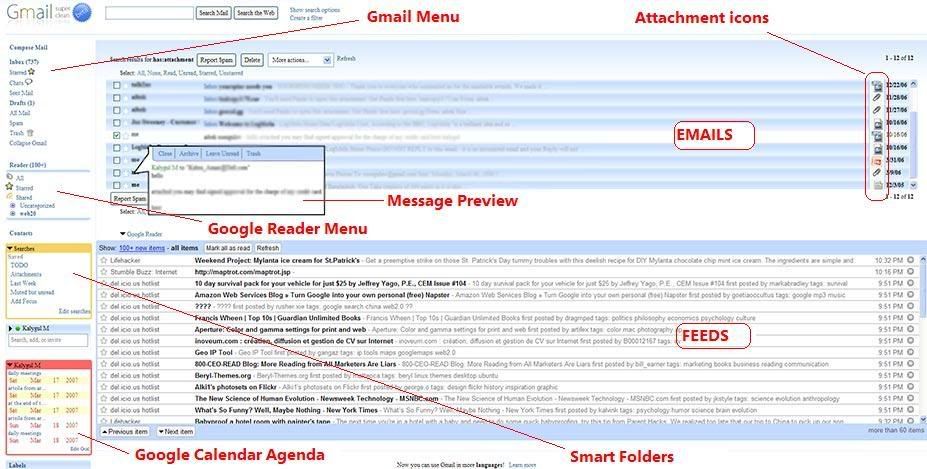
Gmail Super Clean - clean and distraction-free Gmail. Looks great, check it out here

Gmail Spam-count Hide - hides spam count link.

Google Reader Folders - adds a little box that lists the folders on Google Reader along with the number of unread items in each one.

Google Reader Integration - complete integration of GReader into Gmail. Excellent! (view). Jump to Google Reader Tools and Tips.

Google Calendar Integration - integrates GCal agenda into Gmail (view). Jump to Google Calendar Tools and Tips.

Conversation Preview - lets you quickly preview message contents right from the main inbox window (view).

Saved Searches - create ’saved searches’ (aka smart folders) and display them in the separate box in the navigation menu. Clicking on a search executes the saved query (view).

Folders4Gmail - allows you to create nested labels (i.e. labels and sub-labels) [via LifeHacker].

Gmail Date Search - adds a ‘Search by Date’ button to Gmail’s search form.

Label Colors - color menu labels to make them stand out better (view).

GMail Attachment Icons - adds attachment icons to emails, letting you see what kind of attachment an email has (HTML ,JPG, PDF….). Note: ‘Attachment icons’ isn’t a standard Greasemonkey script, it’s an addon for a similar Firefox extension known as Stylish. However it should work with Geasemonkey as well.

GmailTo - forces all ‘mailto’ links to open in GMail.

Fixed Font Toggle - adds a font toggle button so that messages can be viewed in a fixed-width font. Read more …

Gmail Macros - adds extra keyboard shortcuts to Gmail (i.e. “t” for move to trash, “r” for mark as read, “p” for mark as read and add to archive…etc). Read more…

Gmail Encrypt - encrypts your messages to prevent unwanted people from reading it. Just in case someone intercepts it while it’s on the way.

SSLGoogle - forces Gmail, Google Docs and GCale pages and their intra-links to open via secure connection (HTTPS).

Signature Float - moves your email signature to the top of the message rather than the bottom.

Attachment reminder - reminds you to attach a file to your Gmail, based on whether you have the word attach (ed, ment, etc) in the body.

—-

Desktop Programs and Web Apps

GmailDrive (Win) - adds a new virtual drive (’Gmail Drive’) to ‘My Computer‘ folder. Drag’n drop files on top it to store them in your Gmail account.

gDisk (Mac) - Mac alternative for the above mentioned GmailDrive.

Gmail ToDo - handy desktop application that allows you to quickly add and save todo’s in a ‘ToDo’ label in your Gmail account.

FlipMail - free service for forwarding some/all of your emails to your mobile (US Only).

Gmail Loader - cross-platform (Win, Mac, Linux) tool to help you load all your old message archives from other email accounts into Gmail. [via LifeHacker].

Icon Generator - minimize spam exposure by getting an image for your email address and safely publish it wherever needed.

Blogsigs - lets you auto-include the title of your latest blog post in your email signature. Works with Gmail.

GMail Mobile - access Gmail from your mobile.

Google Talk - Google’s IM service which is fully integrable with GMail.

You’ve Got Gmail - Gmail plugin for Trillian (IM client)

Unbl0ck - web-based proxy for accessing Gmail from places where it’s blocked (work, school,…)

iPhoto2Gmail (Mac) - allows you to instantly email images from within iPhoto. Send either original or optimized (resized) image versions.

MailPlane - “…A full fledged mail client for Google Mail and Mac OS X “. Mail client combining best of Gmail with Mac’s simplicity anduser interface. It’s still in beta though, but you can request invite from here.

GmailFS - mountable Linux filesystem which uses Gmail as its storage medium

—-

GMail Notifiers

- for Windows: GMail Notifier (official), GTray, Notifier2
- for Mac: GMail Notifier (official), GCount, Gmail+Growl 2.0
- for Linux: KCheckGmail
- for Firefox: E-Mail Notifier Toolbar, Gmail Notifier

—-

Syncronise anything with Desktop Calander to Google Calander

How to Sync Any Desktop Calendar with Google Calendar


As of yesterday's announcement of CalDAV support in Google Calendar, you can now sync your Google Calendar with virtually any popular desktop calendar for free. Not only can you enjoy your favorite desktop calendar software and still get the benefit of the web interface, but you can also sync any desktop calendar with any other across platforms using GCal as a go-between. Let's take a comprehensive look at how to set up bidirectional syncing between Google Calendar and your favorite desktop calendar—from Outlook and iCal to Sunbird and Thunderbird—for free.

Remember, this doesn't mean that you can sync Google Calendar with just one desktop calendar. It means that no matter what you're using—Outlook at work and iCal at home, for example—you can always stick to desktop calendars if that's what you prefer. Google Calendar now works as both a great web application and a dedicated syncing tool. It's the cloud, and once it's set up, you don't ever have to access your calendar through the web again if you don't feel like it. But when you're not at a desktop, you can fire up GCal from any web browser, make changes, and still be confident your desktop is completely in sync next time you fire it up. Let's get started.


Sync Microsoft Outlook with Google Calendar


Syncing calendar events between Outlook and Google Calendar has been a cinch ever since Google came out with Google Calendar Sync, a free application that provides bidirectional syncing between the two. (It also supports one-way sync in either direction, if for some reason you don't want two-way syncing.) Assuming you're using a supported setup (Outlook 2003 or 2007 and either Vista or XP), here's how to get it working.


  1. Download and install Google Calendar Sync.
  2. Enter your Google account email address and password.
  3. Select your sync method (most likely you want two-way syncing) and the sync frequency you prefer. It defaults to syncing every 120 minutes, which seems a little long for most.
  4. Hit Save and you're done. Easy, right?

sync-now-gcal-outlook.pngIf you've added a new item to your calendar and you want to force a new sync rather than waiting for Google Calendar Sync to run its next sync, just right-click the system tray app and choose Sync. It doesn't get much simpler than that.

Sync iCal with Google Calendar

As of yesterday, Google Calendar supports two-way synchronization with iCal through the CalDAV remote calendar standard. Setting up iCal with GCal varies slightly based on whether or not you're using your default GCal calendar or a secondary calendar. First, here's how to set up your Google Calendar default with iCal:
  1. gcal-to-ical-setup.pngOpen iCal, then fire up your iCal Preferences (iCal -> Preferences or Cmd-,).
  2. Click on the Accounts tab, and then click the '+' button to add a new remote calendar to iCal.
  3. Call the calendar whatever you want (I went with 'Personal' for my main calendar), then enter the Google account username (which is normally your Gmail address) and password.
  4. Click on Server options to display the Account URL text box. For your default calendar, enter the following URL:
    https://www.google.com/calendar/dav/youremail@gmail.com/user
    ...replacing youremail@gmail.com with your actual email address.
  5. Once you've done that, just hit Add and you're finished. Give iCal a few minutes to download all your events and you're good to go.

calendar-settings.pngIf you want to add a secondary calendar, the steps are exactly the same as above with one small difference. Instead of inserting your email address in the Account URL as described in step 4, you need to grab the calendar ID for that specific calendar. You can find it by opening GCal, clicking the arrow next to the calendar you want to sync, and selecting Calendar settings. In the settings, find the Calendar Address section near the bottom of the window, then just copy and paste the Calendar ID (which is formatted like an email address) in place of youremail@gmail.com in the URL above.


You can refresh iCal to make sure you've synced the latest-and-greatest at any time by selecting Calendar -> Refresh or hitting Cmd-R. (Original post)

Sync Mozilla Sunbird or Thunderbird with Google Calendar

thunderbird-with-lightning.pngWhether your using Mozilla's standalone calendar application Sunbird or Thunderbird with the Lightning extension installed (Lightning integrates Sunbird into Thunderbird), bidirectional calendar syncing between either application and Google Calendar is a breeze. The special sauce in this sync is the Provider for Google Calendar extension. Installing Provider in either Sunbird or Thunderbird is basically the same procedure, and here's how it works:
  1. Download and install the Provider extension by saving it to your desktop, opening the Add-ons dialog in either Sunbird or Thunderbird, and dragging the file you just downloaded into the Add-ons dialog. Once installed, make sure to restart the application.
  2. Now that Provider is installed, you have to add your new Google Calendar. In Sunbird, go to File -> New Calendar; in Thunderbird, it's File -> New -> Calendar when you're in the calendar view.
  3. You're now looking at the Create new calendar wizard. Select "On the Network" and hit Continue.
  4. new-calendar-t-bird.pngChoose Google Calendar as the calendar type. The Location field requires the XML flavor of your calendar's Private Address, which you can get by opening GCal and choosing Calendar settings from the drop-down next to the calendar you want to access. At the bottom of the settings page you'll see the Private Address section. Copy the XML link and paste it into the Location field in Sunbird or T-bird.
  5. When you hit Continue, you'll be asked for your Google Calendar username (again, your Gmail address) and password. Enter it, give your new calendar a name, and hit Continue. You're done.

From now on, any event you add to that calendar will automatically sync to GCal and vice versa. You can reload the calendar to get the most up-to-date information at any time by clicking the Reload button in your toolbar. (The button is installed in the toolbar by default in Thunderbird, but you may have to customize your Sunbird calendar to add it to the toolbar.)


Sync Your Mobile Device with Google Calendar


If you're interested in syncing your mobile device with Google Calendar, you've also got a ton of great and free options. BlackBerry users can check out Google Sync, a BlackBerry app made by Google specifically for Gcal-to-BlackBerry syncing.


gcalsync.pngAlternatively, the free, open-source application GCalSync does bidirectional syncing between Gcal and tons of supported phones. (Original post)

If you're an iPhone or iPod touch user, you can set up automatic, two-way syncing between your Google Calendar (and Gmail contacts) with web site NuevaSync. (Original post)

Finally, if your phone supports SyncML, web application GooSync can handle Gcal syncing without installing anything.


Other Options

If you're not happy with the methods detailed above—which I selected because each represents the easiest and cheapest (read: free) option—there are still tons of other tools to sync Google Calendar with your desktop calendar. First, we've covered how to sync Google Calendar and Gmail contacts with the more technical GCALDaemon. Also, the cross-platform Calgoo just went free, with both Outlook and iCal syncing capabilities.


On a somewhat unrelated but still useful note, you can also now sync Google contacts with your Mac OS X Address Book.


How do you like to get your GCal on your desktop? Let us know in the comments.


Adam Pash is a senior editor for Lifehacker who isn't happy until everything syncs. His special feature Hack Attack appears every Tuesday on Lifehacker. Subscribe to the Hack Attack RSS feed to get new installments in your newsreader.

Are you looking to do new gadget for you?

Create Your Own Simple iGoogle Gadget

You do not need to be a super programmer to create gadgets for you and your friend’s iGoogle page. Now this method is not going to create any flashy games or show stock reports, but it is a fun way to share content with friends and family. If you have not yet created an iGoogle page it is very simple, just sign in with your Gmail login (or set up a new account) and get started creating content for the page.

To start adding content go to the link Add Stuff and you can browse through hundreds of gadgets based upon different categories and topics. Here is the example of the How-To Geek iGoogle gadget.

2

The first thing is to go to go to Google’s page to create your own gadget. When you get to the page there are a 7 basic templates where you just fill in a form and save to get your gadget. Here I am going to show the Free Form template. For this example I will be making a gadget for yours truly but you can customize yours for whatever you want.

11

Next enter in a title for your gadget and a link to your website or blog. Enter in your unique text, and choose the layout and background colors. You can then preview your gadget as you edit and make changes.

11

You can add a picture from your Picasa Web Album, Web Address, or directly upload from your hard drive.

1

This is the final product of my weekly tip gadget.

1234

After you have created your gadget you will want to decide if you want to publish it to the gadget directory or not. If this is a personal gadget for you and your friend’s then you probably do not want to publish it. However, you can change that setting later if you feel the need. I am going to go ahead and publish this one.

2

To make changes to your iGoogle gadget simply click the drop down options menu and make changes. After creating the gadget you might want to invite more people to share it with.

1

This method is a basic and simple way to share content with friends, family, and colleagues on their iGoogle pages. In future articles we will go inside the Google Gadget API and learn to create some cool and crazy flashing gizmo’s.

Tuesday, August 12, 2008

How Google Works

If you aren’t interested in learning how Google creates the index and the database of documents that it accesses when processing a query, skip this description. I adapted the following overview from Chris Sherman and Gary Price’s wonderful description of How Search Engines Work in Chapter 2 of The Invisible Web (CyberAge Books, 2001).

Google runs on a distributed network of thousands of low-cost computers and can therefore carry out fast parallel processing. Parallel processing is a method of computation in which many calculations can be performed simultaneously, significantly speeding up data processing. Google has three distinct parts:

  • Googlebot, a web crawler that finds and fetches web pages.
  • The indexer that sorts every word on every page and stores the resulting index of words in a huge database.
  • The query processor, which compares your search query to the index and recommends the documents that it considers most relevant.

Let’s take a closer look at each part.

1. Googlebot, Google’s Web Crawler

Googlebot is Google’s web crawling robot, which finds and retrieves pages on the web and hands them off to the Google indexer. It’s easy to imagine Googlebot as a little spider scurrying across the strands of cyberspace, but in reality Googlebot doesn’t traverse the web at all. It functions much like your web browser, by sending a request to a web server for a web page, downloading the entire page, then handing it off to Google’s indexer.

Googlebot consists of many computers requesting and fetching pages much more quickly than you can with your web browser. In fact, Googlebot can request thousands of different pages simultaneously. To avoid overwhelming web servers, or crowding out requests from human users, Googlebot deliberately makes requests of each individual web server more slowly than it’s capable of doing.

Googlebot finds pages in two ways: through an add URL form, www.google.com/addurl.html, and through finding links by crawling the web.

Screen shot of web page for adding a URL to Google.

Unfortunately, spammers figured out how to create automated bots that bombarded the add URL form with millions of URLs pointing to commercial propaganda. Google rejects those URLs submitted through its Add URL form that it suspects are trying to deceive users by employing tactics such as including hidden text or links on a page, stuffing a page with irrelevant words, cloaking (aka bait and switch), using sneaky redirects, creating doorways, domains, or sub-domains with substantially similar content, sending automated queries to Google, and linking to bad neighbors. So now the Add URL form also has a test: it displays some squiggly letters designed to fool automated “letter-guessers”; it asks you to enter the letters you see — something like an eye-chart test to stop spambots.

When Googlebot fetches a page, it culls all the links appearing on the page and adds them to a queue for subsequent crawling. Googlebot tends to encounter little spam because most web authors link only to what they believe are high-quality pages. By harvesting links from every page it encounters, Googlebot can quickly build a list of links that can cover broad reaches of the web. This technique, known as deep crawling, also allows Googlebot to probe deep within individual sites. Because of their massive scale, deep crawls can reach almost every page in the web. Because the web is vast, this can take some time, so some pages may be crawled only once a month.

Although its function is simple, Googlebot must be programmed to handle several challenges. First, since Googlebot sends out simultaneous requests for thousands of pages, the queue of “visit soon” URLs must be constantly examined and compared with URLs already in Google’s index. Duplicates in the queue must be eliminated to prevent Googlebot from fetching the same page again. Googlebot must determine how often to revisit a page. On the one hand, it’s a waste of resources to re-index an unchanged page. On the other hand, Google wants to re-index changed pages to deliver up-to-date results.

To keep the index current, Google continuously recrawls popular frequently changing web pages at a rate roughly proportional to how often the pages change. Such crawls keep an index current and are known as fresh crawls. Newspaper pages are downloaded daily, pages with stock quotes are downloaded much more frequently. Of course, fresh crawls return fewer pages than the deep crawl. The combination of the two types of crawls allows Google to both make efficient use of its resources and keep its index reasonably current.

2. Google’s Indexer

Googlebot gives the indexer the full text of the pages it finds. These pages are stored in Google’s index database. This index is sorted alphabetically by search term, with each index entry storing a list of documents in which the term appears and the location within the text where it occurs. This data structure allows rapid access to documents that contain user query terms.

To improve search performance, Google ignores (doesn’t index) common words called stop words (such as the, is, on, or, of, how, why, as well as certain single digits and single letters). Stop words are so common that they do little to narrow a search, and therefore they can safely be discarded. The indexer also ignores some punctuation and multiple spaces, as well as converting all letters to lowercase, to improve Google’s performance.

3. Google’s Query Processor

The query processor has several parts, including the user interface (search box), the “engine” that evaluates queries and matches them to relevant documents, and the results formatter.

PageRank is Google’s system for ranking web pages. A page with a higher PageRank is deemed more important and is more likely to be listed above a page with a lower PageRank.

Google considers over a hundred factors in computing a PageRank and determining which documents are most relevant to a query, including the popularity of the page, the position and size of the search terms within the page, and the proximity of the search terms to one another on the page. A patent application discusses other factors that Google considers when ranking a page. Visit SEOmoz.org’s report for an interpretation of the concepts and the practical applications contained in Google’s patent application.

Google also applies machine-learning techniques to improve its performance automatically by learning relationships and associations within the stored data. For example, the spelling-correcting system uses such techniques to figure out likely alternative spellings. Google closely guards the formulas it uses to calculate relevance; they’re tweaked to improve quality and performance, and to outwit the latest devious techniques used by spammers.

Indexing the full text of the web allows Google to go beyond simply matching single search terms. Google gives more priority to pages that have search terms near each other and in the same order as the query. Google can also match multi-word phrases and sentences. Since Google indexes HTML code in addition to the text on the page, users can restrict searches on the basis of where query words appear, e.g., in the title, in the URL, in the body, and in links to the page, options offered by Google’s Advanced Search Form and Using Search Operators (Advanced Operators).

Let’s see how Google processes a query.

1. The web server sends the query to the index        servers. The content inside the index servers is similar        to the index in the back of a book--it tells which pages        contain the words that match any particular query       term.          2. The query travels to the doc servers, which   actually retrieve the stored documents. Snippets are    generated to describe each search result.       3. The search results are returned to the user          in a fraction of a second.

For more information on how Google works, take a look at the following articles.

tags (keywords): , , , , , , , ,

This page was last modified on: Friday February 2, 2007

Results Page

The results page is filled with information and links, most of which relate to your query.

Screen shot indicating what is shown on a Google results page.

  • Google Logo: Click on the Google logo to go to Google’s home page.
  • Statistics Bar: Describes your search, includes the number of results on the current results page and an estimate of the total number of results, as well as the time your search took. For the sake of efficiency, Google estimates the number of results; it would take considerably longer to compute the exact number. This estimate is unreliable.

    Every underlined term in the statistics bar is linked to its dictionary definition. Queries that are linked to just one definition are followed by a definition link.

  • Tips: Sometimes Google displays a tip in a box just below the statistics bar.
    Screen shot of a Google tip
    Screen shot of a Google tip
    Screen shot of a Google tip
  • Search Results: Ordered by relevance to your query, with the result that Google considers the most relevant listed first. Consequently you are likely to find what you’re seeking quickly by looking at the results in the order in which they appear. Google assesses relevance by considering over a hundred factors, including how many other pages link to the page, the positions of the search terms within the page, and the proximity of the search terms to one another.

    Below are descriptions of some search-result components. These components appear in fonts of different colors on the result page to make it easier to distinguish them from one another.

    • Page Title: (blue) The web page’s title, if the page has one, or its URL if the page has no title or if Google has not indexed all of the page’s content. Click on the page title (e.g., The History of the Brassiere - Mary Phelps Jacob) to display the corresponding page.
    • Snippets: (black) Each search result usually includes one or more short excerpts of the text that matches your query with your search terms in boldface type. Each distinct excerpt or snippet is separated by an ellipsis (…). These snippets, which appear in a black font, may provide you with

      • The information you are seeking
      • What you might find on the linked page
      • Ideas of terms to use in your subsequent searches

      When Google hasn’t crawled a page, it doesn’t include a snippet. A page might not be crawled because its publisher requested no crawling, or because the page was written in such a way that it was too difficult to crawl.

    • URL of Result: (green) Web address of the search result. In the screen shot, the URL of the first result is inventors.about.com/library/weekly/aa042597.htm.
    • Size: (green) The size of the text portion of the web page. It is omitted for sites not yet indexed. In the screen shot, “5k” means that the text portion of the web page is 5 kilobytes. One kilobyte is 1,024 (210) bytes. One byte typically holds one character. In general, the average size of a word is six characters. So each 1k of text is about 170 words. A page containing 5K characters thus is about 850 words long.

      Large web pages are far less likely to be relevant to your query than smaller pages. For the sake of efficiency, Google searches only the first 101 kilobytes (approximately 17,000 words) of a web page and the first 120 kilobytes of a pdf file. Assuming 15 words per line and 50 lines per page, Google searches the first 22 pages of a web page and the first 26 pages of a pdf file. If a page is larger, Google will list the page as being 101 kilobytes or 120 kilobytes for a pdf file. This means that Google’s results won’t reference any part of a web page beyond its first 101 kilobytes or any part of a pdf file beyond the first 120 kilobytes.

    • Date: (green) Sometimes the date Google crawled a page appears just after the size of the page. The date tells you the freshness of Google’s copy of the page. Dates are included for pages that have recently had a fresh crawl.
    • Indented Result: When Google finds multiple results from the same website, it lists the most relevant result first with the second most relevant page from that same site indented below it. In the screen shot, the indented result and the one above it are both from the site inventors.about.com.

      Limiting the number of results from a given site to two ensures that pages from one site will not dominate your search results and that Google provides pages from a variety of sites.

    • More Results: When there are more than two results from the same site, access the remaining results from the “More results from…” link.

      When Google returns more than one page of results, you can view subsequent pages by clicking either a page number or one of the “o”s in the whimsical “Gooooogle” that appears below the last search result on the page.

      Click on a number or an "o" to see another page of results.

      If you find yourself scrolling through pages of results, consider increasing the number of results Google displays on each results page by changing your global preferences.

      In practice, however, if pages of interest to you aren’t within the first 10 results, consider refining your query instead of sifting through pages of irrelevant results. To simplify such refinements, Google includes a search box at the bottom of the page you can use to enter your refined query.

  • Sponsored Links: Your results may include some clearly identified sponsored links (advertisements) relevant to your search. If any of your search terms appear in the ads, Google displays them in boldface type.
  • Spelling Corrections, Dictionary Definition, Cached, Similar Pages, News, Product Information, Translation, Book results: Your results may include these links, which are described in the next few chapters.

Here’s another screen shot of the results page in case the one at the top of this page scrolled off your screen.

Screen shot indicating what is shown on a Google results page.

For more on what’s included on Google’s results page, visit www.google.com/help/interpret.html.

tags (keywords): , ,

This page was last modified on: Friday February 2, 2007

How to Get files from the directory - One more method

 import os import openpyxl # Specify the target folder folder_path = "C:/Your/Target/Folder"  # Replace with the actual path # Cre...